Access Audit & Explain
Find out why a user can or cannot read, change, create or delete something in Odoo, why a menu is visible or hidden, and how two users differ.
Requirements
- Odoo 18.0 or 19.0. Tested on Community edition.
- Odoo.sh or your own server. Standard Odoo Online does not allow third-party modules.
- No other modules needed: it depends only on
base.
Installation
On your own server
- Buy the module on the Odoo Apps Store and download the archive for your Odoo version.
- Extract the
addonmint_access_auditfolder into one of your add-ons directories. - Restart the Odoo service.
- In Odoo, activate developer mode, open Apps and click Update Apps List.
- Remove the "Apps" filter, search for Access Audit and click Activate.
On Odoo.sh
- Add the
addonmint_access_auditfolder to your project's repository and push it. - Wait for the build to finish, then install the module from Apps as above.
Try it on a staging or test database first, as you would with any new module.
Who can use it
After installation a new Access Audit app appears on the home screen. It is visible to:
- Settings administrators — automatically.
- Members of the Access Auditor group — for example an internal auditor who should not get full administrator rights.
To add someone to the Access Auditor group:
- Activate developer mode.
- Go to Settings → Users & Companies → Groups and open Access Auditor.
- On the Users tab, add the user and save.
The module is read-only: no tool changes groups, access rights, record rules or menus.
Access Explainer
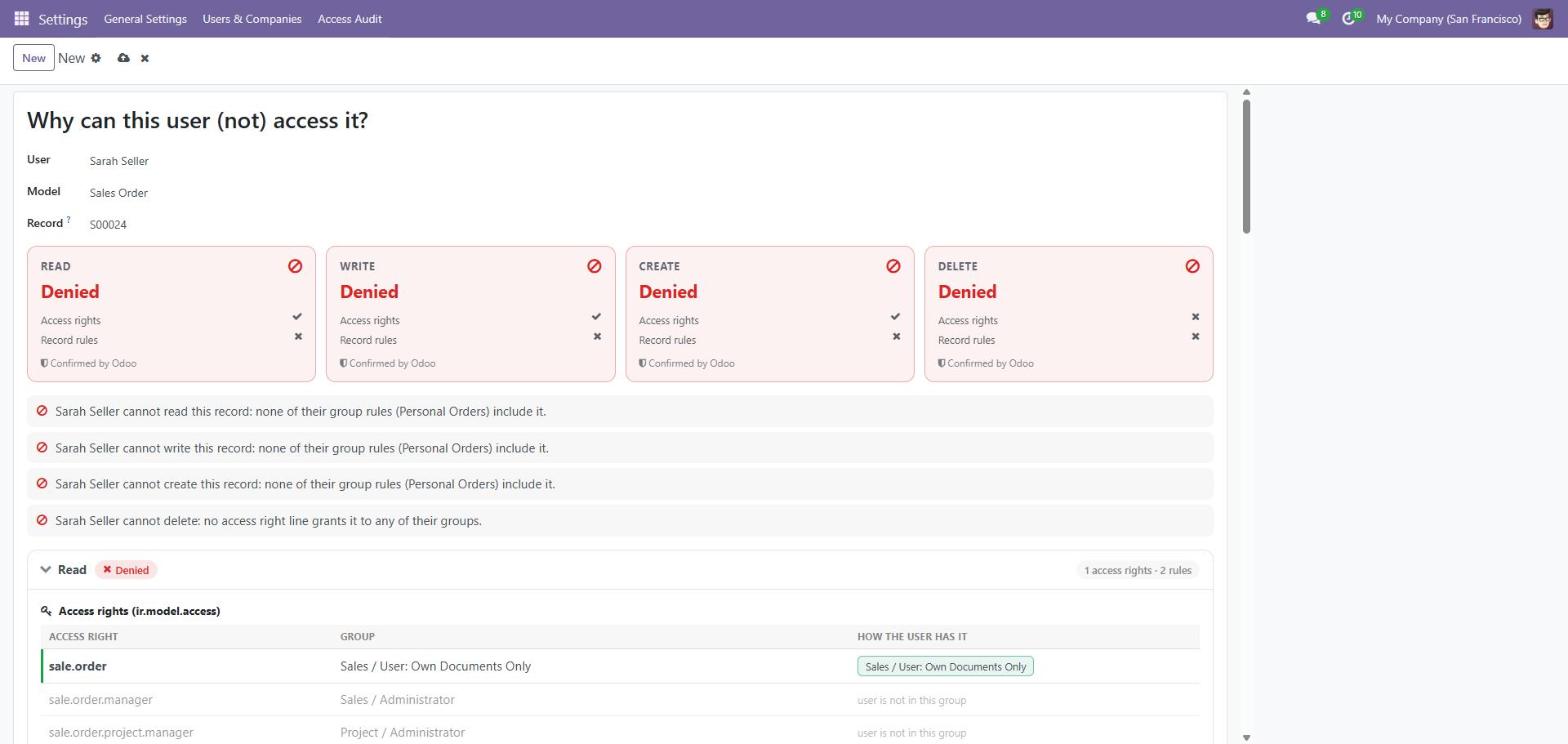
"Why can this user (not) access it?"
- Open Access Audit → Access Explainer.
- Pick a User and a Model, for example Sales Order.
- Optionally pick one Record to check the record rules against it.
The result shows:
- A verdict card for read, write, create and delete — allowed or denied.
- A plain-language summary of the reason.
- Access rights: which right grants the operation and the chain of groups through which the user holds it.
- Record rules: global rules (all must match) and group rules (at least one must match). With a record selected, each rule shows whether it matches or excludes that record.
- Restricted fields: fields limited to certain groups, and whether this user can see them.
Menu Explainer
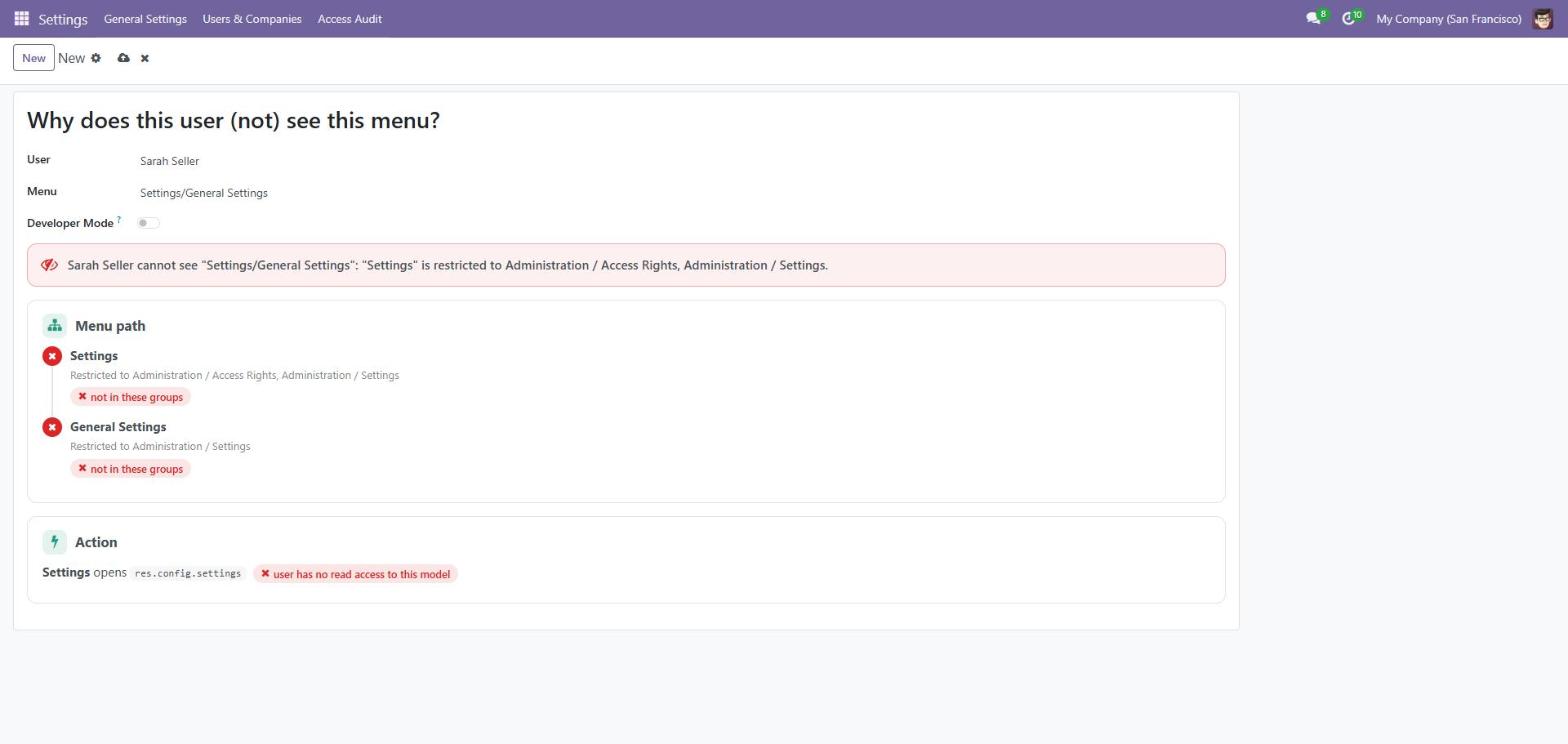
"Why does this user (not) see this menu?"
- Open Access Audit → Menu Explainer.
- Pick a User and search a Menu, for example Sales / Orders.
- Turn on Developer Mode if you want to check menus that are only shown in developer mode.
The result walks the menu path from the top: the groups required on each level, read access on the model the menu opens and — for folder menus — which sub-menus make it visible.
Compare Users
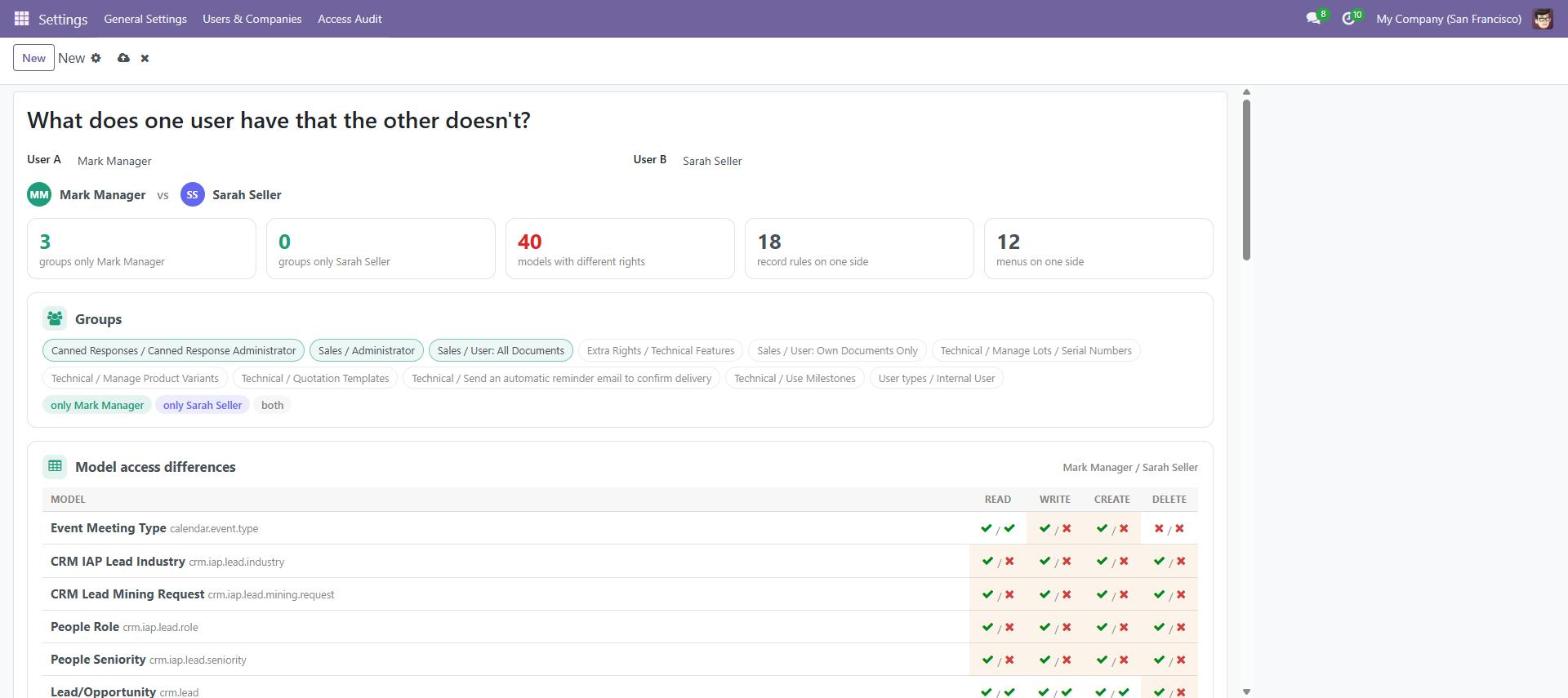
"What does one user have that the other doesn't?"
- Open Access Audit → Compare Users.
- Pick User A and User B.
You see the groups only one of them has, every model where their read / write / create / delete rights differ, and the record rules and menus that apply to only one of them. Useful when a new colleague should get "the same rights as" someone else.
Model Access Matrix
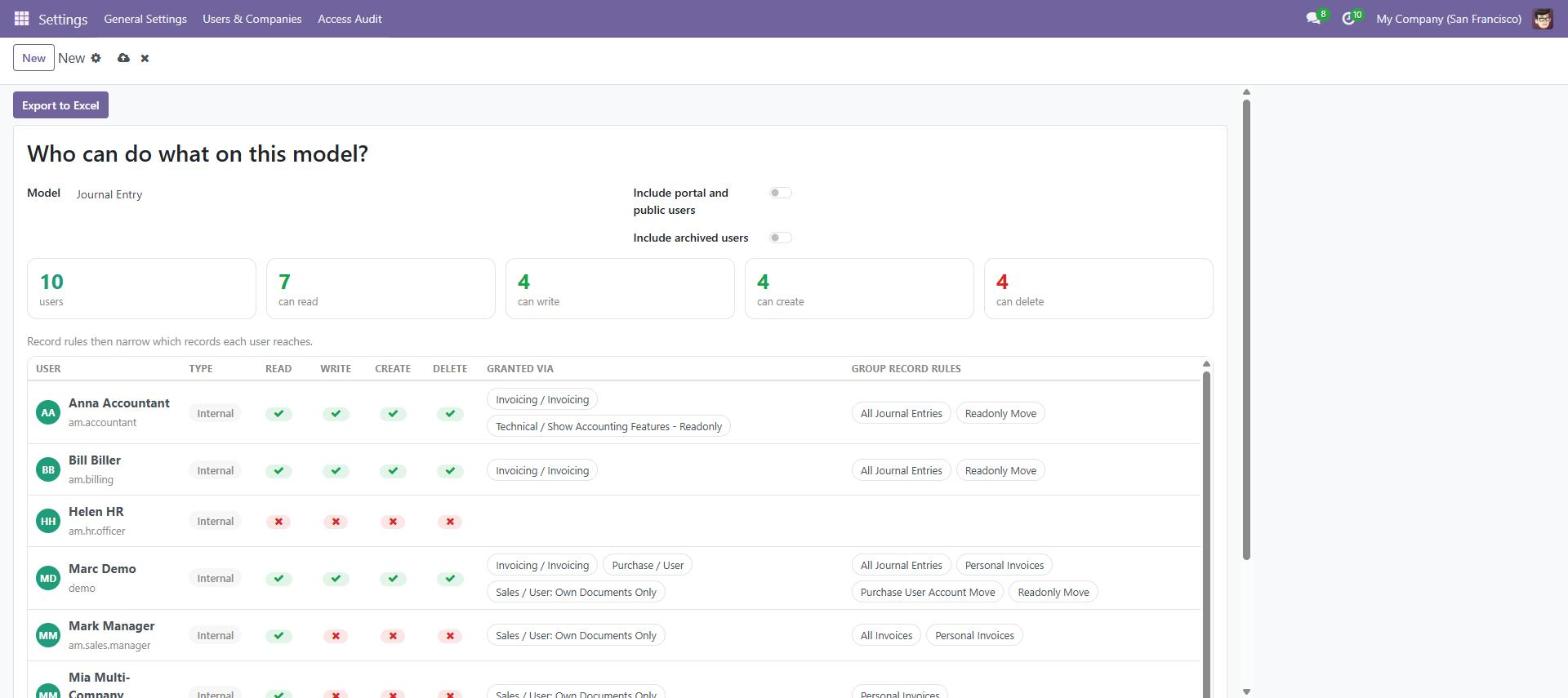
"Who can do what on this model?"
- Open Access Audit → Model Access Matrix.
- Pick a Model, for example Journal Entry.
- Optionally turn on Include portal and public users and Include archived users.
- Click Export to Excel to download the matrix for an access review.
Each row is one user, with their read / write / create / delete rights, the groups that grant them and the record rules that apply.
Good to know
- Every verdict is compared with Odoo's own access check. Some models add extra checks in Python code; when Odoo's answer differs from the rights and rules, a warning says so — Odoo's answer is the one that applies.
- Results are calculated when you open the screen; nothing is stored except the temporary form you are using.
- The screens are available in English and Turkish, following each user's language.
Uninstalling
Open Apps, search for Access Audit and choose Uninstall. The module stores no business data, so nothing else in your database changes.
Still stuck?
Send us the user, the model and what you expected — we reply within one business day.
Contact support