Connect any AI to Odoo
Let Claude, ChatGPT and other AI assistants work with your Odoo data — with your rights, and nothing more.
Requirements
- Odoo 18.0 or 19.0 on Odoo.sh or your own server. Tested on Community edition.
- Your Odoo must be reachable over https from the internet: Claude and ChatGPT connect from their own servers.
- Behind a reverse proxy (nginx…), start Odoo with
proxy_mode = True, and make sure the web.base.url system parameter is your public https address. - One database per address (dbfilter).
- An AI plan that allows custom connectors, for example Claude Pro, Max, Team or Enterprise, or ChatGPT with developer mode.
Installation
- Buy the module on the Odoo Apps Store and add
addonmint_mcp_connectorto your add-ons (or your Odoo.sh repository). - Restart Odoo, then in Apps click Update Apps List, search for AI Connector and click Activate.
- Open the new AI Connector app. The Connection screen shows your connection address, for example
https://erp.example.com/mcp.
Who can connect
Administrators see an Administrator section on the Connection screen:
- AI connections enabled — the main switch.
- Who can connect — only the users you choose (default) or all employees.
- Stop all AI access — disconnects every AI application and turns connections off.
The AI always works as the user who connected it: access rights, record rules, companies and field groups apply exactly as in Odoo.
Connect Claude
- In Claude, open Settings → Connectors and choose Add custom connector.
- Name: Odoo. URL: your connection address.
- Click Connect. Odoo opens: sign in, choose Read only or Read and change, click Allow.
- In a chat, ask for example: "Summarize this month's sales by salesperson."
Connect ChatGPT
- In ChatGPT, open Settings → Apps & Connectors → Advanced and turn on Developer mode (your plan or workspace admin must allow it).
- Create a connector with your connection address and choose OAuth authentication.
- Sign in to Odoo and click Allow.
Other AI tools (Claude Code, Cursor, VS Code…)
Add a remote MCP server of type HTTP with your connection address. When the tool asks you to sign in, Odoo opens in your browser.
For tools that cannot sign in with OAuth, click Create API key on the Connection screen and send it as a header:
Authorization: Bearer
The key is shown once. It only works for AI connections and expires after one year.
Allowing changes
By default the AI can only read. To let it create and update records:
- On the Connection screen, turn on AI may make changes for me and click Save.
- Connect again (or reconnect) and choose Read and change.
The AI can create records, update up to 50 records at a time and post notes. It cannot delete anything.
Activity and undo
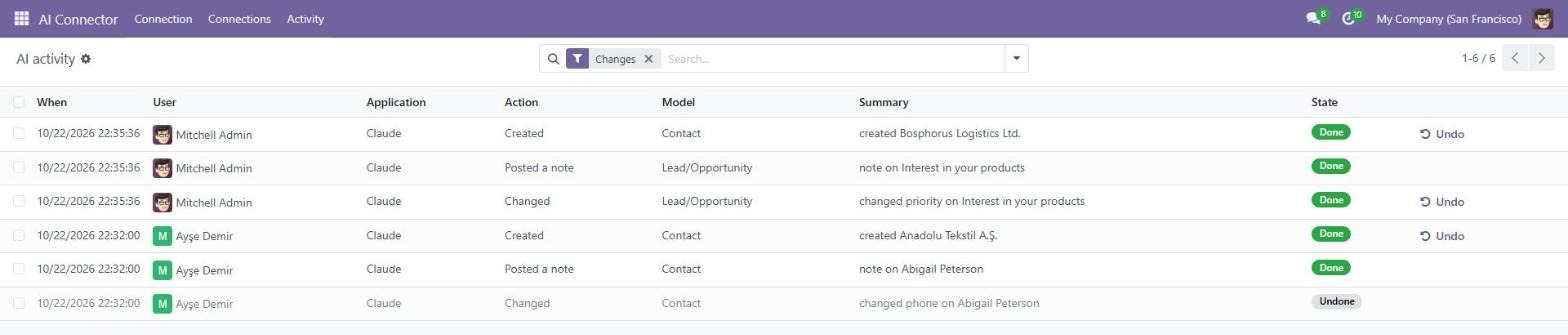
AI Connector → Activity lists everything the AI did: who, which application, what changed. Click Undo on a create or update to reverse it. Users see their own activity; administrators see everyone's. AI Connector → Connections lists connected applications; click Disconnect to remove one.
Troubleshooting
- "Connect this AI application to Odoo first" — the connection expired or was disconnected; connect again.
- "AI connections are not enabled for your account" — ask an administrator to add you on the Connection screen.
- The AI client says the address is unreachable — your Odoo must be reachable over https from the internet, and
web.base.urlmust be that address. - "This connection is read-only" — see Allowing changes.
Need help connecting?
Tell us your Odoo version, hosting and AI application — we reply within one business day.
Contact support